Creating Banners and ButtonsGraphics that you create from scratch, such as banners and buttons, require you to make considerations uniquely different from photographs. The first decision you need to make when you produce a banner or button is how big it should be. Most people accessing the web now have a computer with a screen that is at least 800x600 pixels in resolution, if not considerably larger; for example, my screen is currently set at 1,280x1,024 pixels. You should generally plan your graphics so that they will always fit within smaller screens (800x600), with room to spare for scrollbars and margins. The crucial size constraint is the horizontal width of your pages because scrolling a page horizontally is a huge hassle and source of confusion for web users. Vertically scrolling a page is much more acceptable, so it's okay if your pages are taller than the minimum screen sizes.
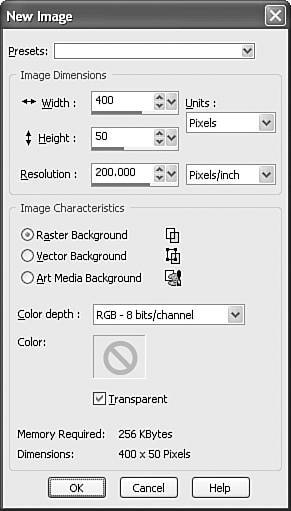
Assuming that you target a minimum resolution of 800x600 pixels, this means that full-sized banners and title graphics should be no more than 770 pixels wide by 430 pixels tall, which is the maximum viewable area of the page after you've accounted for scrollbars, toolbars, and other parts of the browser window. Within a page, normal photos and artwork should be from 100 to 300 pixels in each dimension, and smaller buttons and icons should be 20 to 100 pixels tall and wide. Figure 7.5 shows the dialog box you get when you select File, New to start a new image. Don't worry if you aren't sure exactly how big the image needs to bejust accept the default size if you aren't sure. Otherwise, enter the width and height of the new image. You can leave the Resolution field alone if you're entering the width and height in pixels. Also, the Raster Background setting is fine for most of your graphics creations. You should always begin with RGB - 8 Bits/Channel as the Color Depth because this results in a very high-quality image. Figure 7.5. You need to decide on the approximate size of an image before you start working on it.
For the image's background color, you should usually choose white to match the background that most web browsers use for web pages. (You'll see how to change a page's background color in Hour 9.) When you know that you'll be making a page with a background other than white, you can choose a different background color. In fact, you may want to create an image with no background at all, in which case you'll click the Transparent check box. When an image's background is transparent, the web page underneath the image is allowed to show through those areas of the image. When you enter the width and height of the image in pixels and click OK, you are faced with a blank canvasan intimidating sight if you're as art-phobic as most of us! Fortunately, computer graphics programs such as Paint Shop Pro make it amazingly easy to produce professional-looking graphics for most web page applications.
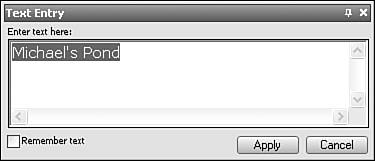
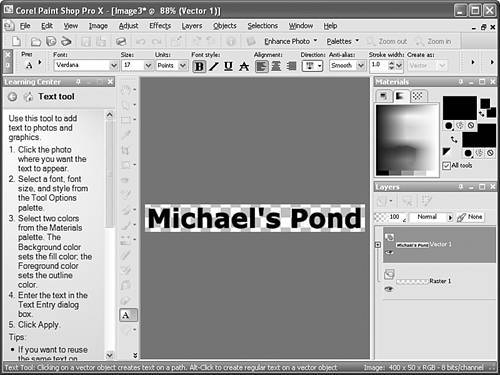
Often, you will want to incorporate some fancy lettering into your web page graphics. For example, you might want to put a title banner at the top of your page that uses a decorative font with a drop-shadow or other special effects. To accomplish this task in Paint Shop Pro, perform the following steps:
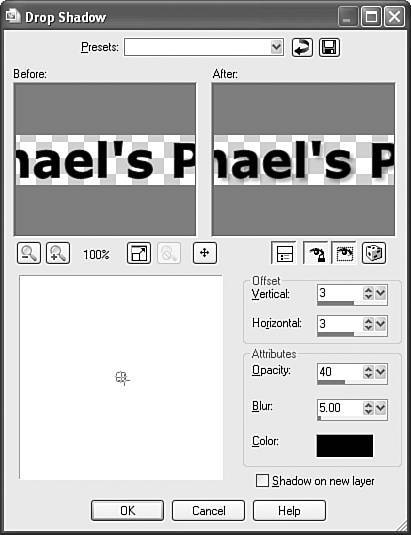
When you first put the text onto the image, it appears with a rectangle drawn around it. This means that it is selected and that any special effects you choose from the menu will apply to the shape of the letters you just made. For example, you might select Effects, 3D Effects, Drop Shadow from the main menu to add a drop shadow to the text. Figure 7.8 shows the dialog box that appears. You will be prompted to convert the text to a raster object before applying the drop shadow effectjust click OK to convert the text. Figure 7.8. Like most menu choices in Paint Shop Pro, the Effects, 3D Effects, Drop Shadow command gives you an easy-to-use preview.
Notice that you can adjust the drop shadow effect and see the results in a small preview window before you actually apply the changes to the image. This makes it very easy to learn what various effects do simply by experimenting with them. Using only the text tool and the choices on the Effects, 3D Effects submenu (Buttonize, Chisel, Cutout, Drop Shadow, and Inner Bevel), you can create quite a variety of useful and attractive web graphics. You may also want to deform, blur, sharpen, or otherwise play around with your text after you've applied an effect to it. To do so, simply select Effects, Effect Browser and select an effect to use. You see a dialog box like the one shown in Figure 7.9, which lets you pick from a list of effects and preview each one. Figure 7.9. Select Effects, Effect Browser to play with all the image-altering special effects available, and then choose the one you want.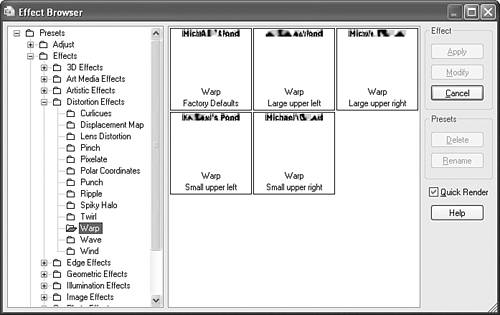 In the figure, the Warp effect from the Effect Browser is being used, which stretches and distorts the text in some strange ways. You can have a lot of fun playing around with all the different options in the effect browser!
|