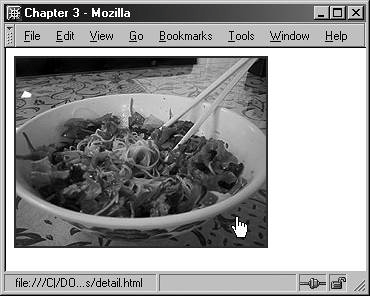
Linking the ImageMany times you will want to link an image to either another HTML document or a detailed version of the image. In either case, linking an image works the same way as linking text. You surround the image code with the anchor element and the reference to where the image is linking, just as if it were the text content (see Example 3-3). Example 3-3. Linking the image<a href="detail.html"> <img src="/images/010/photo.jpg" width="250" height="188" alt="photograph of a delicious The image is now linked, and when clicked on, it will take the visitor to the detail.html page. You can even add a title attribute to the link if you want further details about the link to be available to your visitors. By default, browsers place a border around the image to highlight the fact that it is a linked image, and the hand cursor appears upon mouseover, too (see Figure 3-6). Figure 3-6. A linked image.
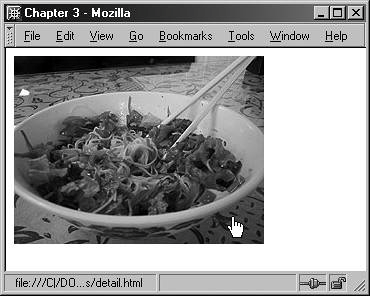
If the image link is followed, the browser will use the default visited link color around the image. Of course, many people find the link border unsightly. If you'd like to get rid of your border immediately, you can do so by turning it off directly in the HTML, as shown in Example 3-4. Example 3-4. Using the border attribute<a href="detail.html"> <img src="/images/010/photo.jpg" width="250" height="188" alt="photograph of a delicious The image, while still linked, now displays no border (see Figure 3-7). Figure 3-7. The image, while still linked, has no visible border.
|
 Vietnamese noodle dish from restaurant Pho 88" />
</a>
Vietnamese noodle dish from restaurant Pho 88" />
</a>