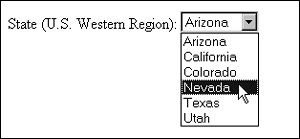
Using Form MenusTwo types of form menus exist: drop-down and list. Both are extremely useful and can be modified in numerous ways to suite a range of needs. One of the most popular means of providing options in forms is the all-familiar drop-down menu. Menus of this sort are especially helpful when you have numerous options, and they are typically seen in standard menus for states, countries, pricing and so on. Drop-down menus are created by combining your selections with the select and option elements (see Example 5-8). Example 5-8. A drop-down form menu<form method="get" action="http://www.myserver.com/cgi-bin/mailscript/"> <p>State (U.S. Western Region):</p> <select> <option value="Arizona">Arizona</option> <option value="California">California</option> <option value="Colorado">Colorado</option> <option value="Nevada">Nevada</option> <option value="Texas">Texas</option> <option value="Utah">Utah</option> </select> </form> Figure 5-7 displays the drop-down menu. Figure 5-7. Selecting from a drop-down form menu.
You can add other features to your drop-down menu, including preselected choices. As with the checked attribute for check boxes, preselection can assist with your form's usability by providing a more custom approach. To preselect a specific option within a form menu, simply use the selected attribute: <option value="Nevada" selected="selected">Nevada</option> This causes Nevada to appear as the default selection in a drop-down form menu (see Figure 5-8). Figure 5-8. Use the select attribute to create a default selection in a drop-down menu.
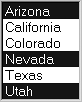
You can also create a list menu. This is prepared exactly the same way a drop-down form menu is, but you add the size attribute with a numeric value that matches the number of options to the opening select tag: <select size="6"> You can add a selected attribute to any option you'd like selected by default. An additional feature with list menus is to offer multiple selections. Simply add the multiple attribute to the opening select tag: <select size="6" multiple="multiple"> The menu now becomes a menu list, allowing your visitor to make multiple selections (see Figure 5-9). Figure 5-9. A menu list with multiple options selected.
|