
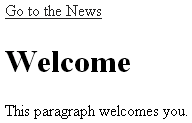
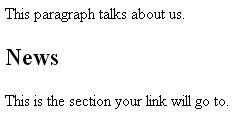
Intrapage LinkingIntrapage linking enables you to have a link in a document that will automatically go to another location within the same document. This is achieved by creating a link to the location using an octothorpe (#) followed by a relevant name, and then defining the location using an anchor element and the name attribute with that name. You can use as many such links in a document as is reasonable to achieve your goals. This technique is most helpful for navigating very long documents (see Example 2-15). Example 2-15. Setting up intrapage links<p><a href="#news">Go to the News</a></p> <h1>Welcome</h1> <p>This paragraph welcomes you.</p> <h2>About</h2> <p>This paragraph talks about us.</p> <h2><a name="news">News</a></h2> <p>This is the section your link will go to.</p> Figures 2-13 and 2-14 demonstrate how this works. Figure 2-13. Clicking the intrapage link.
Figure 2-14. The browser moves the document to the named location.
Using the same technique as with intrapage linking, you can link from one document to a specific place in another document. This technique is useful when you're referencing a specific notation within text that might be on another page. To achieve this, you simply use an absolute URL plus the octothorpe followed by the named location in the first document (see Example 2-16). Example 2-16. Using links to jump to a specific place in another document<p><a href="http://www.molly.com/headers.html#h2">Follow this link to read about h2 level You name the section in the document to which you are referring appropriately (see Example 2-17). Example 2-17. The desired location<h1><a name="h2">All about h2 level headers</a></h1> The first document then contains a link to the specific location within the other document. |
 headers</a></p>